Export straight into Sage 50
Map FlowRota shifts, overtime, roles, leave and absence to your Sage 50 payment codes, then generate a payroll-ready CSV using either FlowRota's calculated rates or rates already configured in Sage.

Generate a detailed view of employee hours, pay, overtime, TOIL, leave, absence and lateness for the teams and dates you choose — then turn that data into the payroll file your business actually needs.
Move from individual employee figures to team and location spend, build custom CSV reports with the fields and mappings your accounts team requires, or generate a Sage 50-ready export with configurable pay codes and rate handling.
FlowRota brings scheduled work and the records around it into a single reporting view. Each employee row can show money, hours, TOIL, leave, absence and lateness for the period selected. When the figures are ready, managers can export the standard report, build a custom payroll CSV from scratch or generate a Sage 50-ready file using their saved mappings.
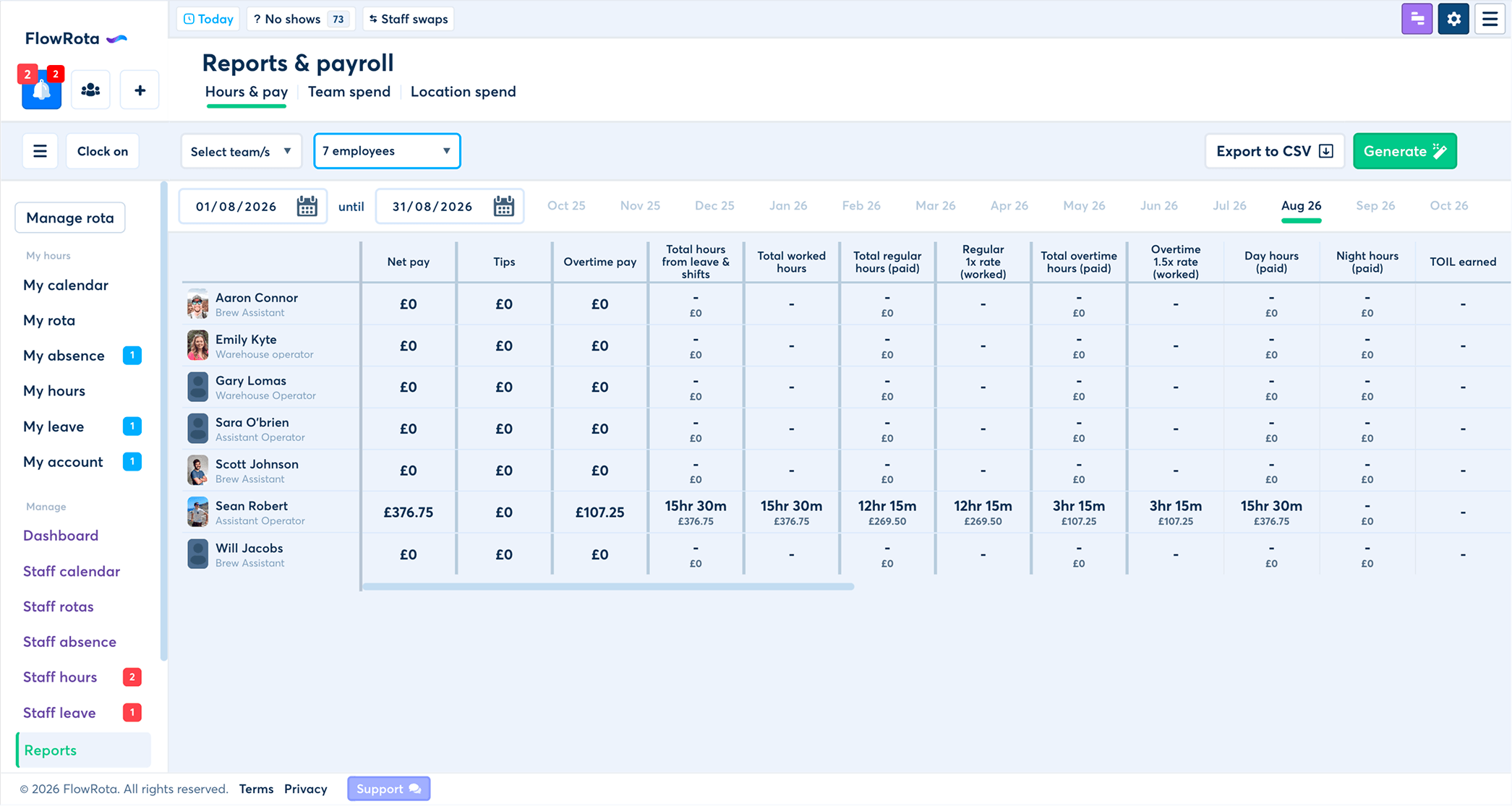
Instead of exporting several disconnected lists, managers can move from the employee’s hours to the costs and exceptions that explain them.
Map FlowRota shifts, overtime, roles, leave and absence to your Sage 50 payment codes, then generate a payroll-ready CSV using either FlowRota's calculated rates or rates already configured in Sage.
Create CSV reports around the exact format your payroll or accounts team needs. Choose the data to include, arrange the fields and build reusable exports around your existing process.
Review pay values, tips, overtime and the hours behind them, then export them in the structure your payroll process expects.
Separate total worked hours from regular, overtime, day and night hours.
See time off in lieu earned and used during the selected period.
Break leave into paid, contracted, overtime and unpaid categories.
Review absence periods, shift absence, late starts and their paid or unpaid durations.
Switch from employee-level figures to workforce spend by team or location.
A useful report should answer a focused question.
FlowRota lets the manager narrow the dataset before generating it.
Select one or more teams, choose the employees to include and set the start and end dates. Month and year navigation makes it easier to move between reporting periods before using Generate.
Report controls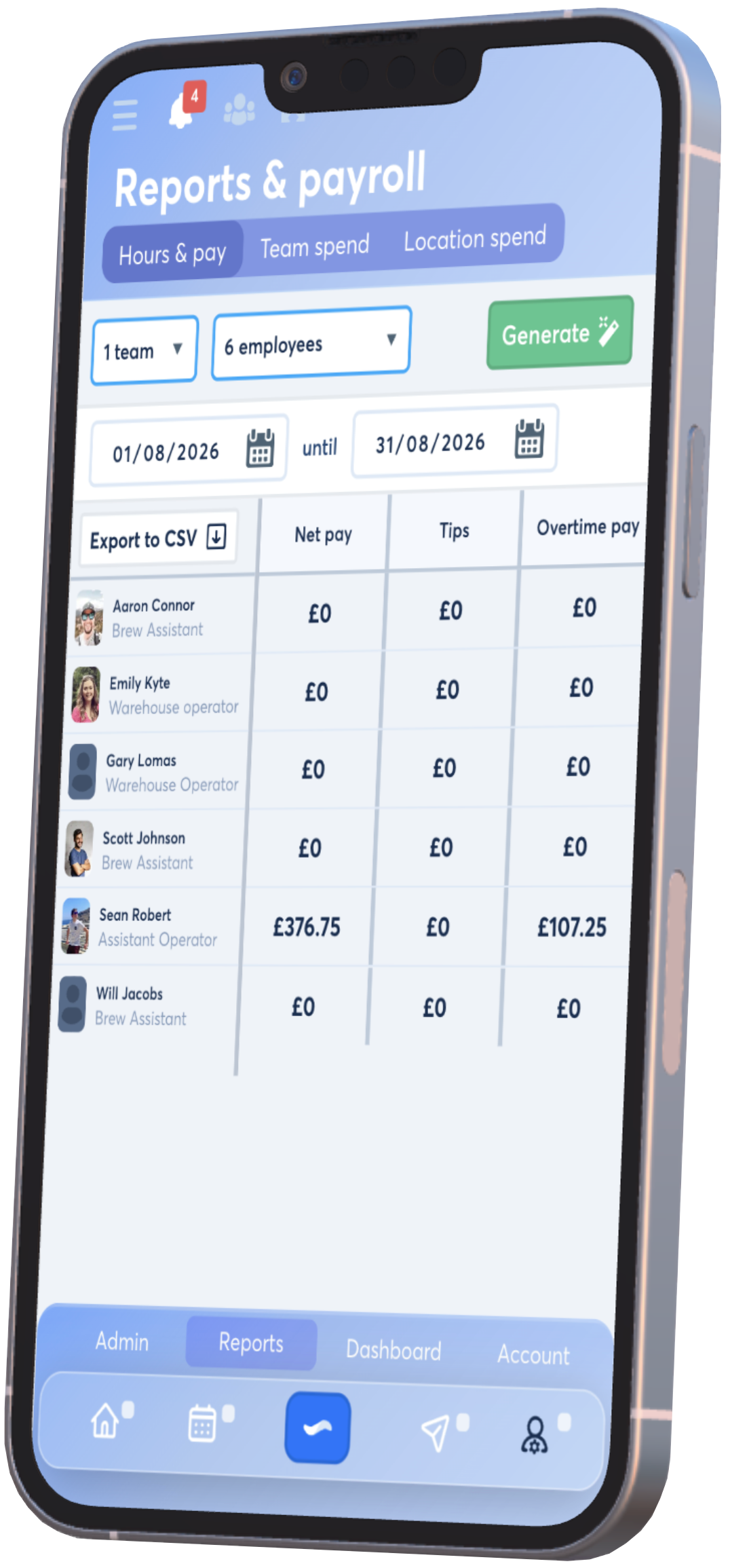
The Hours & pay report keeps headline money values beside detailed time categories, helping managers investigate a result without jumping between separate screens.
Start with the amounts most useful during a payroll review.
Available columnsBenefit: Compare the overall value with the hours and pay categories that contribute to it.
Separate the employee’s ordinary worked time from additional paid overtime.
Available columnsBenefit: Make it easier to trace the difference between total time, regular hours and overtime.
See when paid hours were worked and how banked time changed during the reporting period.
Available columnsBenefit: Review less common pay and time categories without losing the employee-level context.
| Report group | Examples included | Management question |
|---|---|---|
| Money | Net pay, tips and overtime pay. | “What value is recorded for this employee and period?” |
| Worked time | Total worked, regular, overtime, day and night hours. | “Which types of hours created the total?” |
| Banked time | TOIL earned and TOIL used. | “How has the employee’s time-off balance moved?” |
Employee rows explain personal totals. The Team spend and Location spend tabs give managers a broader view of where workforce cost sits across the operation.
Group workforce spend around the teams used to organise the rota.
Useful forBenefit: See which parts of the business are driving workforce cost.
Organise spend around the places where employees are scheduled to work.
Useful forBenefit: Give multi-location managers a quicker route from rota activity to spend.
 Three views, one reporting area.
Move between Hours & pay, Team spend and Location spend without
rebuilding the selected period.
Three views, one reporting area.
Move between Hours & pay, Team spend and Location spend without
rebuilding the selected period.
Leave, absence and lateness can all affect hours and cost. Their own report columns make those differences visible instead of hiding them inside a single total.
Separate the main leave categories recorded during the selected period.
Available columnsBenefit: Understand how much time away was paid, unpaid or linked to a specific allowance category.
Review both the amount of absence and the records that created the total.
Available columnsBenefit: Find attendance patterns and check whether the recorded time was paid or unpaid.
FlowRota does not force every business into the same spreadsheet. Use the standard CSV, build a custom report around your own payroll format, or create a Sage 50-ready file with the mappings your accounts team has already defined.
Create a custom report from scratch instead of rearranging a fixed spreadsheet after every payroll run. Choose the FlowRota data you need and map it into the fields and column structure your payroll, accountant or finance process expects.
Map FlowRota pay categories to the payment references used in your Sage 50 Payroll account. FlowRota can then produce a payroll-ready CSV with employee references, payment references, hours and rates already structured for your Sage import process.
Select the employees and reporting period, review the figures and choose the export format that matches the job. The result can be a detailed FlowRota report, a custom CSV built around your own accounting workflow, or a Sage 50 payroll export with your saved mappings applied.
Export workflow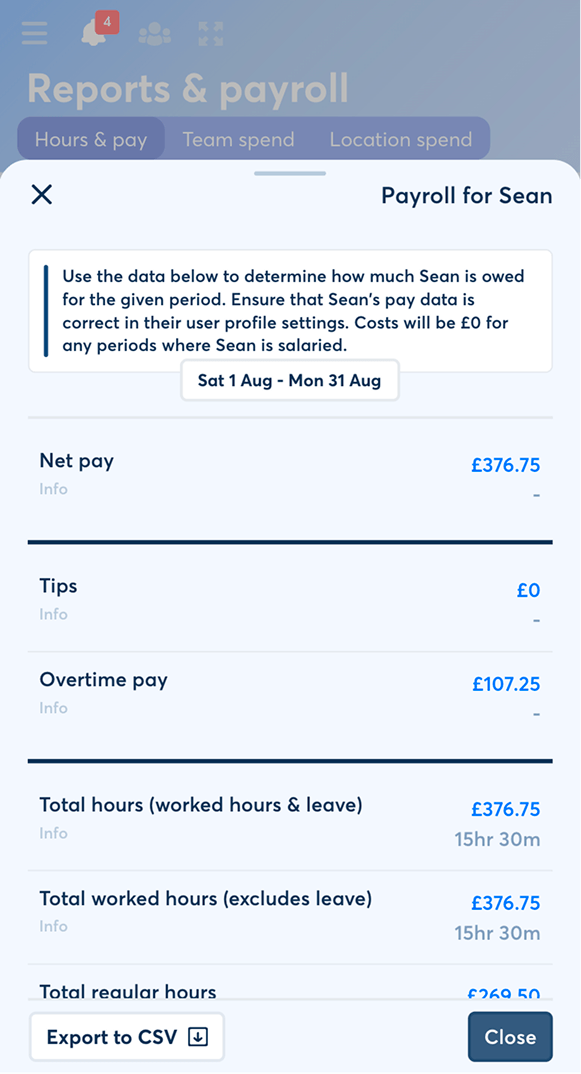
Reporting becomes more useful when the totals remain connected to the scheduling, leave and attendance records that produced them — and the export already fits the payroll process waiting at the other end.
Review employee hours, pay categories and exceptions, then export them directly into a mapped payroll format.
Compare employee figures with spend organised by team or location.
Bring overtime, TOIL, leave, absence and lateness into the same period review.
Generate from FlowRota records and reuse mapped export formats instead of rebuilding payroll spreadsheets from scratch.
Reports are strongest when overtime, leave and attendance are recorded consistently. These pages explain the workflows that feed the wider workforce picture.
FlowRota reports bring together employee pay values, worked hours, overtime, TOIL, leave, absence and lateness, alongside team and location spend views.
Yes. Managers can select teams and employees, choose a date range and generate the report for the period they need.
Yes. The hours and pay report includes regular and overtime hours, worked-rate columns, and separate day and night hour columns.
Yes. Employee rows can include net pay, tips and overtime pay alongside the hours and costs recorded for the selected period.
Yes. The report shows TOIL earned and TOIL used, helping managers understand changes to each employee’s banked time.
Leave columns include total leave, paid leave, contracted leave, overtime leave and unpaid leave for the selected period.
Managers can review total, paid and unpaid absence, absence periods, shift absence, late starts, total late duration, paid and unpaid late duration, and absence quantity.
Yes. Separate report views organise workforce spend by team and by location, alongside the employee-level hours and pay view.
Yes. Managers can export the standard generated report, build a custom CSV around the fields and structure their payroll process needs, or generate a Sage 50-ready CSV using their configured mappings.
Yes. Custom CSV reports can be built around the data your payroll or accounts team needs. Choose the fields to include and map FlowRota data into the column structure your existing process expects.
Yes. FlowRota can generate a Sage 50-ready CSV using employee references and mapped payment references. Shifts, overtime, roles, leave and absence can be mapped separately, and each mapping can use FlowRota’s calculated rate or the rate configured in Sage.
FlowRota costs £1 per user per month after a 30-day free trial. No credit card is required to start the trial. Visit the pricing page for full details.
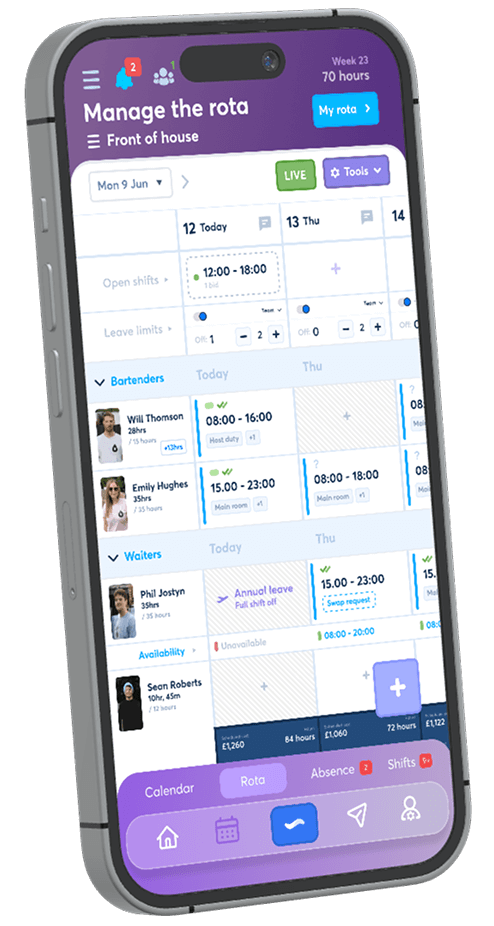
Build the schedule, record the exceptions and generate the payroll data your business needs — from detailed workforce reports to custom CSV layouts and Sage 50-ready exports. The trial is free for 30 days, no credit card is required, and continued access costs just £1 per user per month.
Start your free trial