

Setting up FlowRota
Welcome & Start-up checklist
Welcome to your new FlowRota account. If you haven’t done so already, we recommend completing the Start-up checklist . The checklist helps configure the essential organisation details that FlowRota uses to calculate hours, leave and reporting correctly.
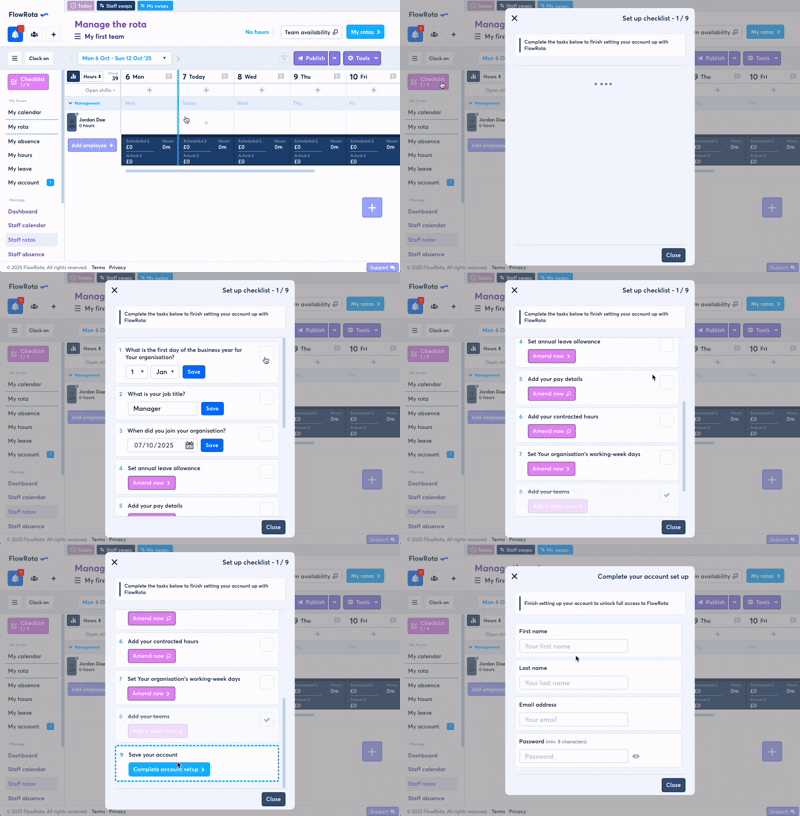
The start-up checklist helps you configure essential settings.
This page explains the Admin settings you can configure to tailor FlowRota to your organisation’s needs.
Accessing the Admin panel
Desktop:
On the left side menu - scroll to the bottom — click
Admin
or go to
app.flowrota.com/admin
Mobile:
go to the
Account
tab (bottom right), then tap
Admin
.
General settings
The General settings area contains the organisation-wide configuration. Key options include:
- Company name — displayed in user interfaces and emails.
- Country — determines default currency and local shift laws.
- Timezone — used for all timestamps and daily calculations.
- Calendar year number — used for reporting week numbers (adjust if your week 1 does not start on 1 January).
- Re-launch checklist — re-open the start-up checklist modal to change initial settings.
- Authorise support access — enable if you want FlowRota support to access your account for troubleshooting (no passwords are accessible).
-
Make next year available
— allow users to view and request leave for the following year.
This toggles off automatically when the new year begins (based
on your organisation’s year start date).
Important: Changing the company year start date can adversely affect reporting. We generally recommend creating a new FlowRota account if your business year changes to avoid inaccuracies.
- Pay day generation — configure rules for generating pay days in users’ calendars (e.g. every third Friday or the 24th each month, with weekend rules). Pay days are generated only by an admin, and will be generated for the rest of the business year. The next year’s pay days can be generated after the company year rolls over.
- Allow organisation-wide shift swaps — permit staff to request swaps with colleagues in the same team.
- Clock-on period — how early users can clock on to a scheduled shift. Early clock-ons may create an unscheduled clock record if outside the window.
- Pay for late clock-ins — when enabled, FlowRota can pay employees for the period they were late for a scheduled shift when the clock card is approved. This applies when a shift is set to “Pay clocked time only”.
- Reference period — the number of weeks FlowRota uses to calculate average hours for leave pay. See gov.uk guidance for variable hours workers. You can configure the earliest reference (how far FlowRota may look back — UK law permits looking back up to 104 weeks beyond the initial reference period where necessary - or back to when the employee joined the organisation).
- Enable GPS — capture GPS coordinates on clock-in/out and breaks (requires device GPS enabled; can be disabled per employee in their profile).
- Clock terminal photo required — require a photo for terminal clock-ins at fixed devices.
- Terminal clock-in by name only — allow users to pick their name from a terminal dropdown instead of entering a PIN.
- Session timeout — set automatic logout time and the option to force logout all staff (useful for suspected account compromise).
Leave settings
Configure how leave behaves across your organisation.
- Default annual leave allowance — base entitlement for new users (editable per user).
-
Time-off-in-lieu (TOIL)
— allow overtime to be banked as TOIL. Options:
- Enable TOIL — toggle TOIL on or off for the organisation.
- TOIL period — define the window during which TOIL may be requested and used. This single period governs both the request deadline and the expiry/usage window (e.g. 6 months, 12 months).
- Custom leave types — create additional leave types (paid or unpaid) and define whether users can request them or only managers can add them.
- Shift leave — leave types that apply to scheduled shifts (e.g. hospital appointment) and use the shift’s pay rate.
Employees
Add and manage employee records. You can view active staff and archive leavers.
Archived employees are preserved for reporting and are not billed unless active during a billing month.
Teams
Teams group users (for example, by department or site) and define which managers can manage shifts, leave and time for those users.
- Each team has a list of members and a list of managers .
- Managers can add shifts, approve/decline timesheets and manage team hours.
- Leave approvals: only the manager(s) of the user’s primary team (or a system admin) may approve, decline, amend or add that user’s leave. Users can belong to multiple teams but must have a primary team for leave approval to be delegated correctly.
- A manager can be both a member and a manager of the same team. Permissions controlling whether managers may self-manage (approve their own leave, modify their own shifts, approve their own clock cards) are configurable per team in the team modal.
- Managers may also be manager-only (they will not appear in personal rotas but will see team rotas and team management pages).
- Archiving teams: teams cannot be deleted (for historic reporting). You must remove all users and managers before archiving.
Locations
Add physical sites with GPS coordinates where your organisation operates. When GPS is enabled and a user clocks on, FlowRota finds the nearest location and displays the distance and (where available) GPS accuracy.
We recommend using gps-coordinates.net to obtain precise co-ordinates.
Day rules (open/closed days & pay rates)
Configure whether particular days are open or closed, set day-specific pay rates and define bank holiday behaviour.
- Define open/closed days and the relevant pay rates (including night shift rates).
- When calculating average hours for the reference period, FlowRota adjusts for days the company is closed.
- Configure bank holidays by region and set whether they are paid or unpaid; you may also exclude specific holidays where they are not observed.
Absence
Absence in FlowRota comes in two forms:
- Absence periods — blocks of time treated like leave periods (calculated using contracted or average hours from the reference period).
- Absent shifts — scheduled shifts that are wholly or partly absent (calculated from scheduled shift duration).
Additional absence settings:
- Allow staff to self-log absence on scheduled shifts (manager may then review and mark paid/unpaid).
- Enable employee absence ranking (view team absence performance to deter unnecessary absence).
- Create custom absence types (paid/unpaid) — these are archived rather than deleted to preserve historic reporting.
- Enable Return-to-work forms to collect manager-defined questionnaires when employees return from absence.
Overtime
Configure overtime pay rates and how overtime contributes to leave accrual.
For example, if an employee’s contracted week is 35 hours but they routinely work 40 hours, FlowRota can use the higher average to calculate leave entitlement (so a week of leave could be calculated as 40 hours). These rules can be overridden per user.
Read more at: Pay accrued overtime and leave .
Permissions
Permission controls determine what each manager can do — particularly managers who are also users of the teams they manage.
- Admin users: can override any restriction and approve requests for any user.
-
Manager self-approval settings:
where a manager is also a member of a team, configure whether
they can self-approve their own:
- Leave requests
- Shift amendments and swaps
- Clock cards / timesheets
- Leave requests are special: only managers of a user’s primary team (or admins) may approve or edit their leave. Other manager permissions (shifts, clock cards) apply to any team the person manages.
- For more detail see: Self approve permissions
Account & Billing
Manage your subscription, free trial and account settings. FlowRota uses Paddle as the merchant of record — Paddle handle payments and local taxes.
If you have a billing issue, Paddle handle the transaction, but FlowRota support can assist and provide information when needed.
Administrators
The Administrators area allows you to add or remove admin users. Admins have full access across FlowRota and can manage rotas, teams, leave, clock cards and reports regardless of other permissions.
Notes & recommendations
- Year start changes: avoid changing the company year start unless necessary — it may corrupt historic reporting. If you need a different financial/reporting year consider a fresh FlowRota account.
- Archiving teams/users: archive rather than delete to preserve historic reporting.
- GPS & accuracy: always check device GPS accuracy if location results look unexpected.
- Security: enable session timeouts and force-logout when you suspect compromise.