

Unlinked Clock Cards
Overview
In FlowRota, each clock card represents an employee’s clock-in and clock-out data. Normally, approved clock cards are linked to a scheduled shift so that the hours and pay can be accurately calculated. However, when a clock card becomes separated from its associated shift — for example, if the shift was deleted, moved to another date, or reassigned to a different employee — it becomes an unlinked clock card .
How clock cards link to shifts
When a clock card is approved, FlowRota checks whether a scheduled shift exists for the employee at that time:
- If a matching shift exists, the clock card is linked to that shift.
- If no matching shift exists (for example, if the employee clocked in without a scheduled shift), FlowRota automatically creates a new shift and links it to the clock card.
This ensures every approved clock card contributes towards an employee’s worked hours and pay.
Why clock cards become unlinked
A clock card can become unlinked if the shift it was linked to has been changed or removed. Common reasons include:
- The shift was deleted
- The shift was reassigned to another employee
- The date of the shift was moved
Because FlowRota determines pay and hours based on shifts rather than clock cards, an unlinked clock card means that the employee’s worked hours might not be reflected in their pay until it is re-linked.
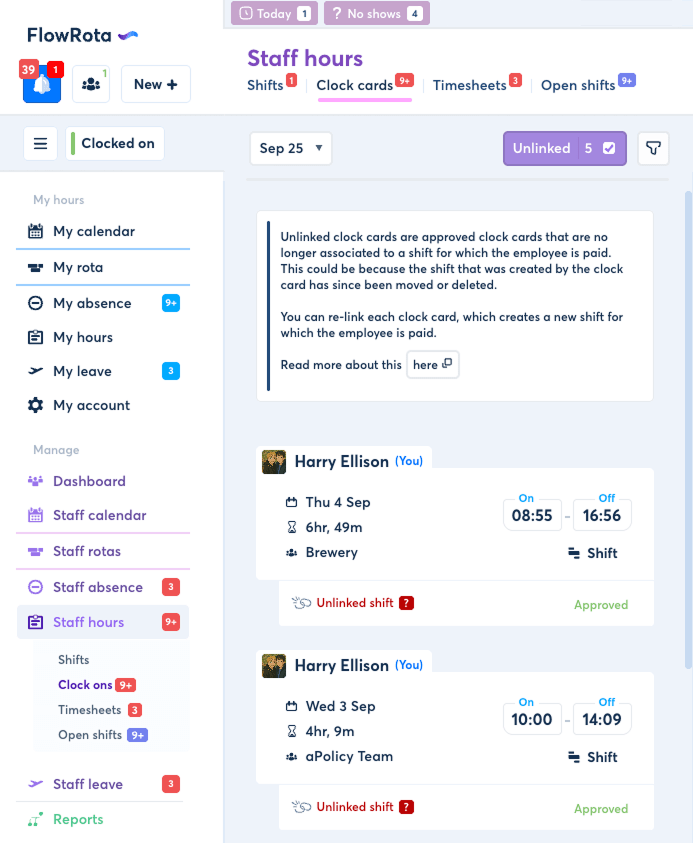
Unlinked clock cards can be found in the Staff Clock Cards page and selecting 'Unlinked'.
The purple 'Unlinked' button will only appear if there are unlinked clock cards within the selected month. To view unlinked clock cards from previous months, change the month using the month dropdown at the top of the page.
Re-linking unlinked clock cards
To ensure employees are correctly paid for their worked hours, an unlinked clock card must be re-linked to a shift.
To re-link a clock card:
- Open the unlinked clock card from the Clock Cards page.
- Click ‘Re-link’ at the bottom of the modal.
- FlowRota will automatically create a new shift for the clock card and associate it with the employee.
Once re-linked, the newly created shift can be viewed and edited like any other scheduled shift.
Best practice before re-linking
Before re-linking a clock card, always check the employee’s hours in Staff rotas to make sure they don’t already have another shift for the same work period. Re-linking without checking could result in duplicate shifts and inaccurate pay calculations.
Alternatively, you can re-link a clock card by declining the unlinked clock card and re-approving it.
Summary
Unlinked clock cards appear when a clock card no longer has an associated shift. Because hours and pay are derived from shifts, these clock cards must be re-linked to ensure accurate payroll reporting. Following the correct re-linking process helps maintain consistent, reliable time and attendance data within FlowRota.