

Rota shift shells
Overview
A rota shift shell is a pre-built structure containing unassigned shift items linked to specific job titles rather than individual employees. This allows managers to plan and store shifts for roles in advance — ready to assign later to any employee who holds that job title.
While similar to rota templates, shells differ because they do not attach shifts to named users. Instead, they hold these shifts “in waiting,” visible in the Rota Editor as unassigned items under each job title row.
Assigning and unassigning shells
Once a shell is loaded into the rota, you can drag and drop unassigned shell items to a specific employee to instantly convert them into scheduled shifts.
You can also reverse the process: drag a scheduled shift from an employee back into the shell row to remove the user assignment. This converts the shift back into a shell item — keeping it ready for future re-assignment.
Creating and saving a shell
To create or save a shell, open a rota week that already has scheduled shifts for employees in the Team Rota . Click or tap the “Tools” button in the top-right corner, then select “Save template.”
In the template modal, choose “Shell” from the dropdown at the top-right. This generates a new unsaved shell populated with the shifts from the currently viewed rota week. You can then add or remove shell items as needed.
Before saving, give your shell a name — it can’t be saved without one.
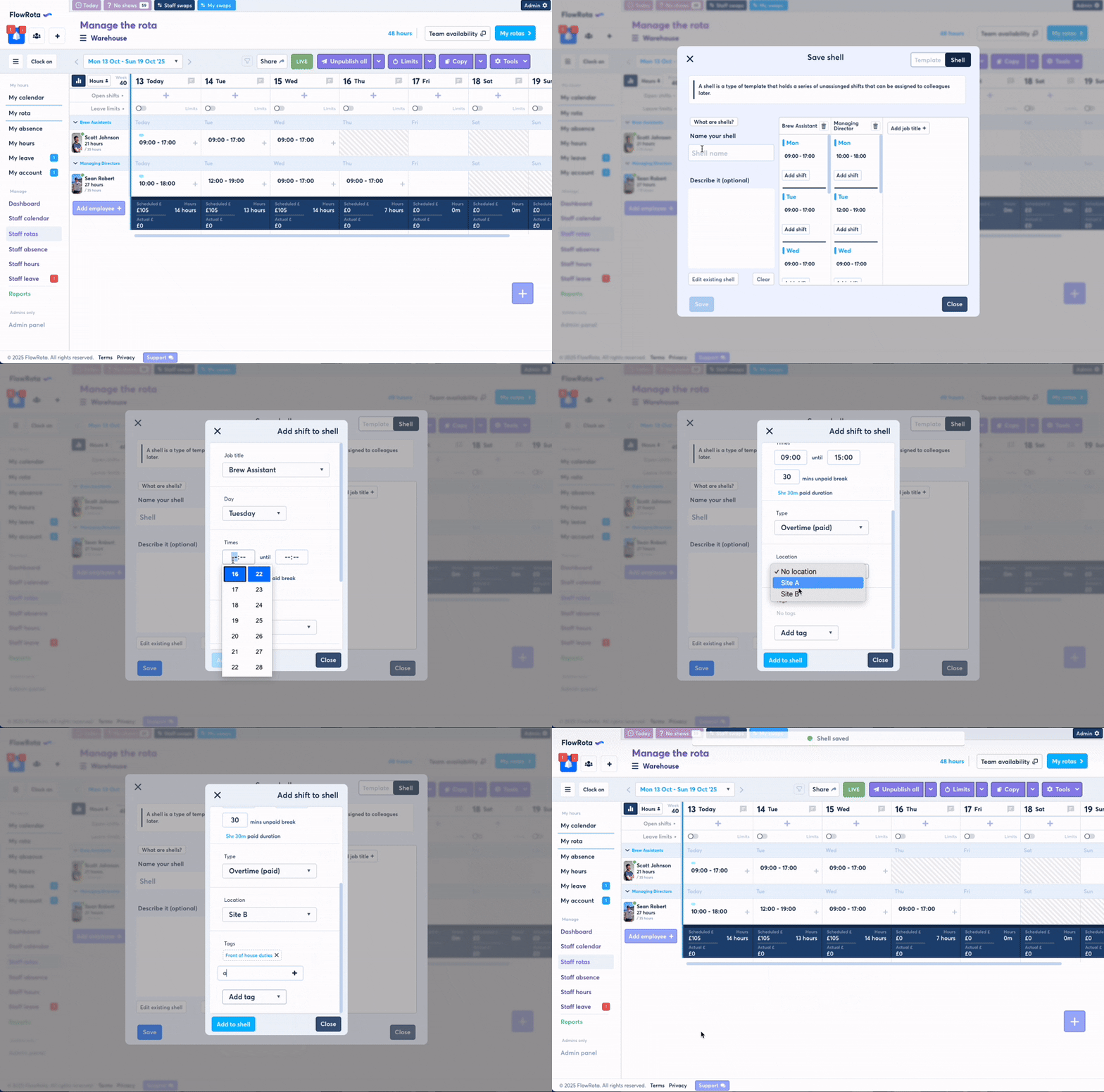
Saving a shell is done via the 'Save template' modal
Loading and editing a shell
To load an existing shell into a rota, open the “Tools” menu again and select “Load template.” In the modal, choose “Shell” from the top-right menu to view all available saved shells.
Selecting a shell will load its unassigned shifts into the Rota Editor. You can then drag and drop them onto employees as needed. Loading the built-in “Empty shell” option will insert a blank shell, letting you build a new one manually from scratch.
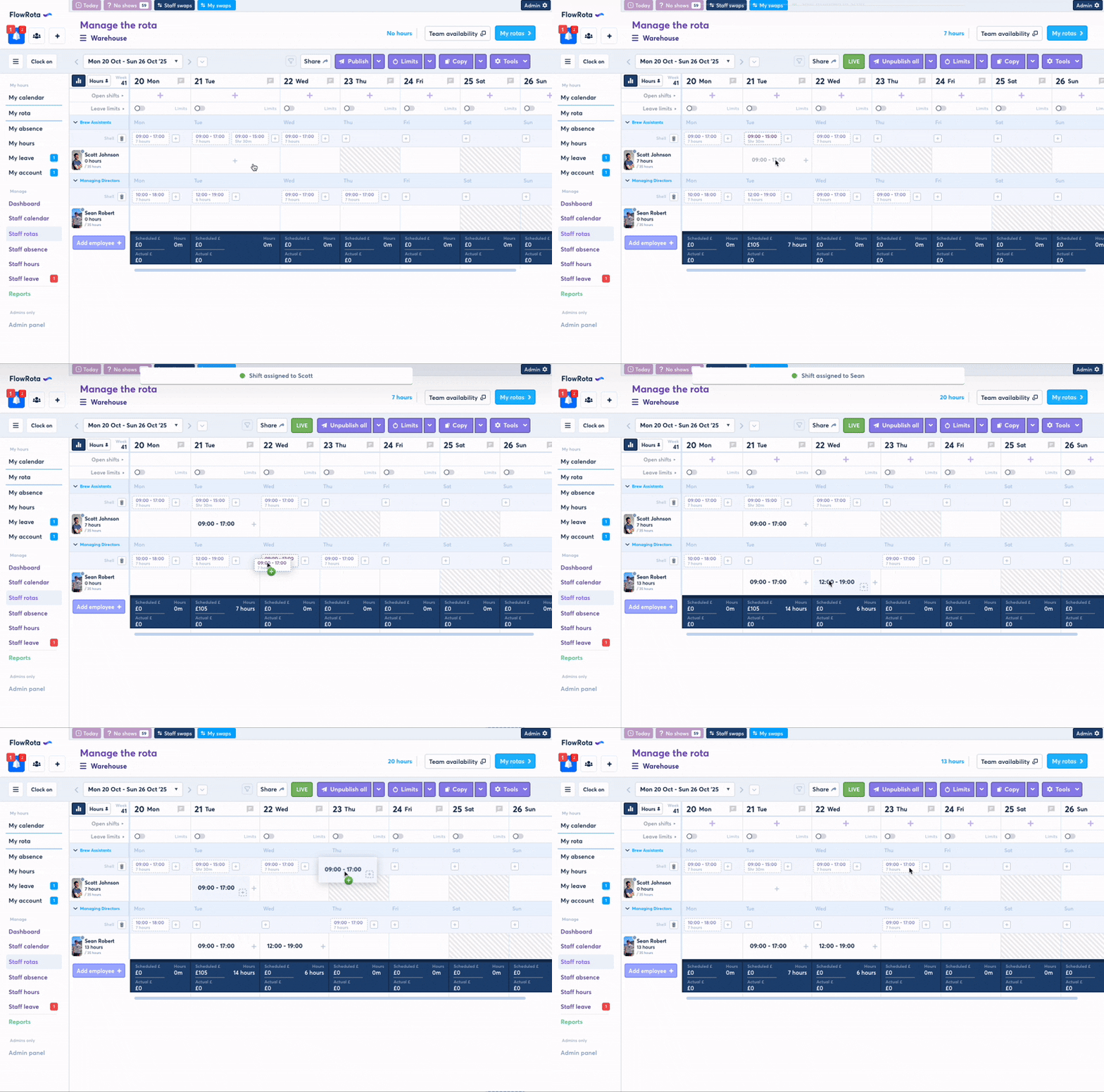
Once a shell is loaded, you can drag and drop shell items to employees to assign them - and drag them back to the shell row to unassign them and convert them back to shell items.