

Custom reports and Sage 50 payroll exports
Overview
FlowRota can export the Hours & pay report in several CSV
formats. Alongside the general export, you can create a
custom report
with the exact columns your payroll or accounts process needs, or
configure a dedicated
Sage 50
export using your own payroll codes and rate settings.
Both export types use the employees and reporting period currently
selected in Reports. Once a configuration has been saved, you can
reuse it for future payroll periods rather than rebuilding the
file manually each time.
Before you start
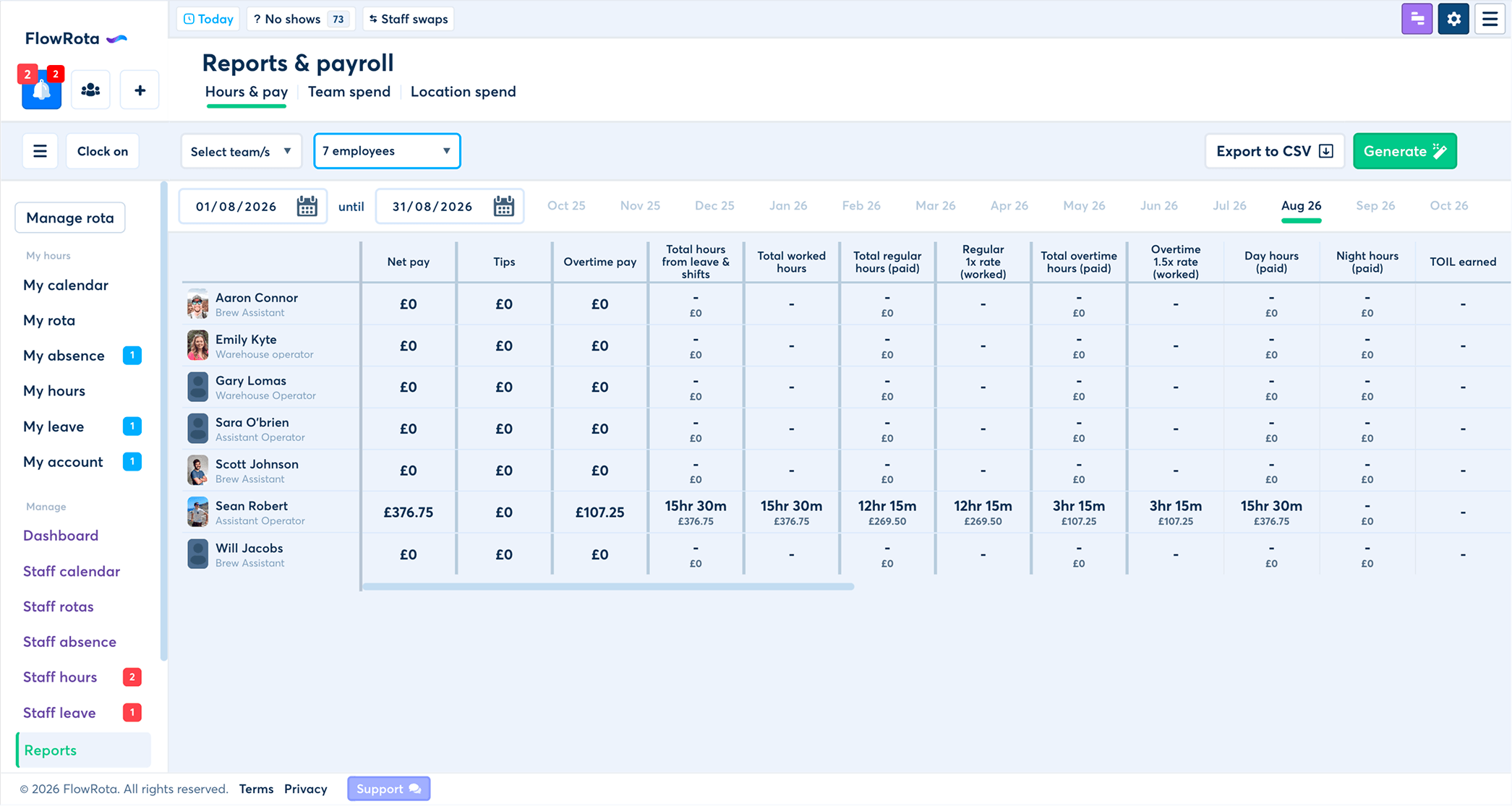
First generate the Hours & pay report for the employees and dates you want to export. Select the required teams and employees, choose the start and end dates, and generate the report. When the report is ready, select Export
The export window contains three options:
- General export — exports the standard FlowRota report.
- Sage 50 — exports using your saved Sage 50 mappings.
- Custom — exports using your saved custom report columns.

You can choose between general, Sage 50, and custom export options.
The settings icon beside Sage 50 or Custom opens the configuration screen for that export type. Configure and save the settings first, then use the Sage 50 or Custom export button when you are ready to download the CSV.
Staff numbers and payroll references
A staff number is the payroll reference used to identify an employee in an exported file. In FlowRota this is shown as Staff number (payroll number) .
For Sage 50 exports, every employee must have a staff number. This is required so each FlowRota employee can be matched to the correct employee record in Sage 50. Staff numbers can be set in each user's profile or directly from the Staff numbers tab within the Sage 50 export settings.
For a custom report, staff numbers are only required when Staff number is used as one of the report's column values. If the custom report references staff numbers, every employee included in the export must have one set. You can add or amend them from the Staff numbers tab in the custom report settings.
Staff numbers should also be unique. If FlowRota finds missing or duplicated staff numbers while saving a configuration, it will take you to the Staff numbers section so they can be corrected.
Create a custom report
Custom reports let you build the CSV around the format your payroll, accountant or finance team expects. Each column has its own heading and its own FlowRota value, so the exported file can be arranged around an existing process rather than forcing that process to match FlowRota's standard report.
- Generate the Hours & pay report and select Export
- Select the settings icon beside Custom
- The Build a custom report window opens.
- Select the Report columns tab.
- Edit each Column title to match the heading required in your CSV.
- Choose the corresponding Column value from the dropdown.
- Use Add column to add more fields.
- Remove any optional column you no longer need using the remove icon.
- Select Save when the report structure is ready.
The Column title is the heading that will appear in the exported CSV. The Column value tells FlowRota which piece of data should be placed underneath that heading. This means your headings can use the terminology expected by your payroll system or accountant while still pulling the correct FlowRota data.
Values available in custom reports
The available column values are built from the data and pay settings used by your organisation. They can include employee details and payroll totals as well as separate values for shifts, overtime, roles, leave and absence.
- Staff number
- Full name, first name or last name
- Email address
- Net pay and tips
- Annual leave duration in decimal hours or minutes
- Annual leave cost in pounds or pence
- Shift duration or cost for each pay-rate multiplier used by FlowRota
- Overtime duration or cost for each overtime multiplier
- Role duration or cost for each role configured in the organisation
- Leave-type duration or cost for individual leave types
- Absence-type duration or cost for individual absence types
Where a duration is available, you can normally choose between decimalised hours and minutes. Cost values can be exported as decimalised pounds or pence. This makes it easier to match the format expected by another system without editing the CSV afterwards.
If you select Staff number as a column value and one or more employees do not have a staff number, FlowRota displays a warning in the custom report builder. Open the Staff numbers tab and complete the missing values before exporting.

Preview of the custom mapping export screen.
Configure a Sage 50 export
The Sage 50 export maps FlowRota pay categories to the Sage codes used by your payroll setup. Configure the mappings once, save them, and FlowRota can use the same setup when creating future Sage 50 CSV exports.
- Generate the Hours & pay report and select Export
- Select the settings icon beside Sage 50
- The Map your payroll fields for Sage 50 window opens.
- Check the Staff numbers tab and make sure every employee has a payroll number.
- Work through the Shifts, Overtime, Roles, Leave and Absence tabs.
- Enter the relevant Sage code for each item you want to map.
- For each mapped code, choose whether the rate should come from FlowRota or Sage
- Select Save when the mappings are complete.
Map shifts, overtime, roles, leave and absence
The Sage 50 settings are split into separate tabs so different types of payroll data can be mapped independently.
- Shifts — map unpaid shifts and each shift pay-rate multiplier used in FlowRota, such as 1x, 1.5x or 2x.
- Overtime — map unpaid overtime and each overtime pay-rate multiplier separately from normal shifts.
- Roles — map specific FlowRota roles to Sage codes. A role mapping takes priority over the normal shift or overtime mapping for work recorded against that role.
- Leave — map annual leave and your organisation's other leave types where required.
- Absence — map the absence types used by your organisation.
Enter the Sage code that corresponds to the relevant payment element in your Sage setup. Once a Sage code has been entered, FlowRota shows the Rate to use option for that mapping.

Preview of the Sage mapping export screen.
Choose where the pay rate comes from
For each Sage mapping, choose whether the exported rate should be calculated by FlowRota or handled by Sage.
- FlowRota — FlowRota supplies the calculated rate for the mapped item. For shift and overtime mappings this follows the employee's hourly rate and the relevant pay multiplier. For a role mapping, FlowRota uses the rate associated with that role.
- Sage — FlowRota leaves the rate to the setup in your Sage account. Use this when Sage should remain responsible for the rate attached to that payroll code.
This setting is available for shift, overtime, role, leave and absence mappings. Choose the option that matches how your payroll is configured rather than duplicating rates in both systems when that is not necessary.
Save the setup and export
After configuring either a custom report or Sage 50 mapping, select Save. FlowRota stores the configuration so it can be reused for later reporting periods.
Return to the export choices and select Custom or Sage 50 to generate the CSV. The exported data uses the employees, teams and date range from the report you generated.
If a Sage mapping is missing or the Sage setup is incomplete, FlowRota will stop the Sage export and direct you back to the export settings. If a custom report has not yet been created, FlowRota will similarly prompt you to configure the custom export first.
Duplicate Sage codes
FlowRota checks for duplicate Sage codes when you save the Sage 50 mappings. Duplicate codes can be intentional — for example, you may deliberately want more than one FlowRota category to feed the same Sage payment code.
If duplicate codes are found, FlowRota highlights the affected code fields and asks whether you want to proceed. Select Go back if the duplicate is a mistake, or confirm the warning if the duplicated mapping is intentional.
Common export messages
Not all staff have employee numbers
For Sage 50, every employee needs a staff number. For a custom
report, this is required when Staff number is referenced as a
report column. Open the Staff numbers tab and complete the missing
values.
Some employee numbers are duplicated
Check the Staff numbers tab and give each employee a unique
payroll number before saving again.
Sage mappings have not been set or some are missing
Open the Sage 50 settings and complete the required mappings
before trying the Sage export again.
No custom report has been created
Open the Custom settings, build the report columns you require and
save the configuration before exporting.
Summary
Custom reports let you decide exactly which FlowRota values appear
in a CSV and what each exported column is called. Sage 50 exports
take that a step further by mapping FlowRota pay categories to
your Sage payroll codes and letting you decide whether FlowRota or
Sage should provide the pay rate.
Set staff numbers carefully, save the configuration once it
matches your payroll process, and reuse it whenever you generate
the next reporting period.